
NeuraTiM CanvasForge
Resize it, convert it, export it — and nothing leaves your device.
A handy image editor rather than an enormous one. Crop, resize, adjust, add an effect, hide what should not be seen — then export to any of eleven formats, at a size you pick or a file size you set. Free, offline, no account.
How It Works
Open a picture. Change what you meant to. Leave with a new file.
The original file is never modified. Everything you change is a parameter you can undo, and export always writes a fresh file you choose.
Open
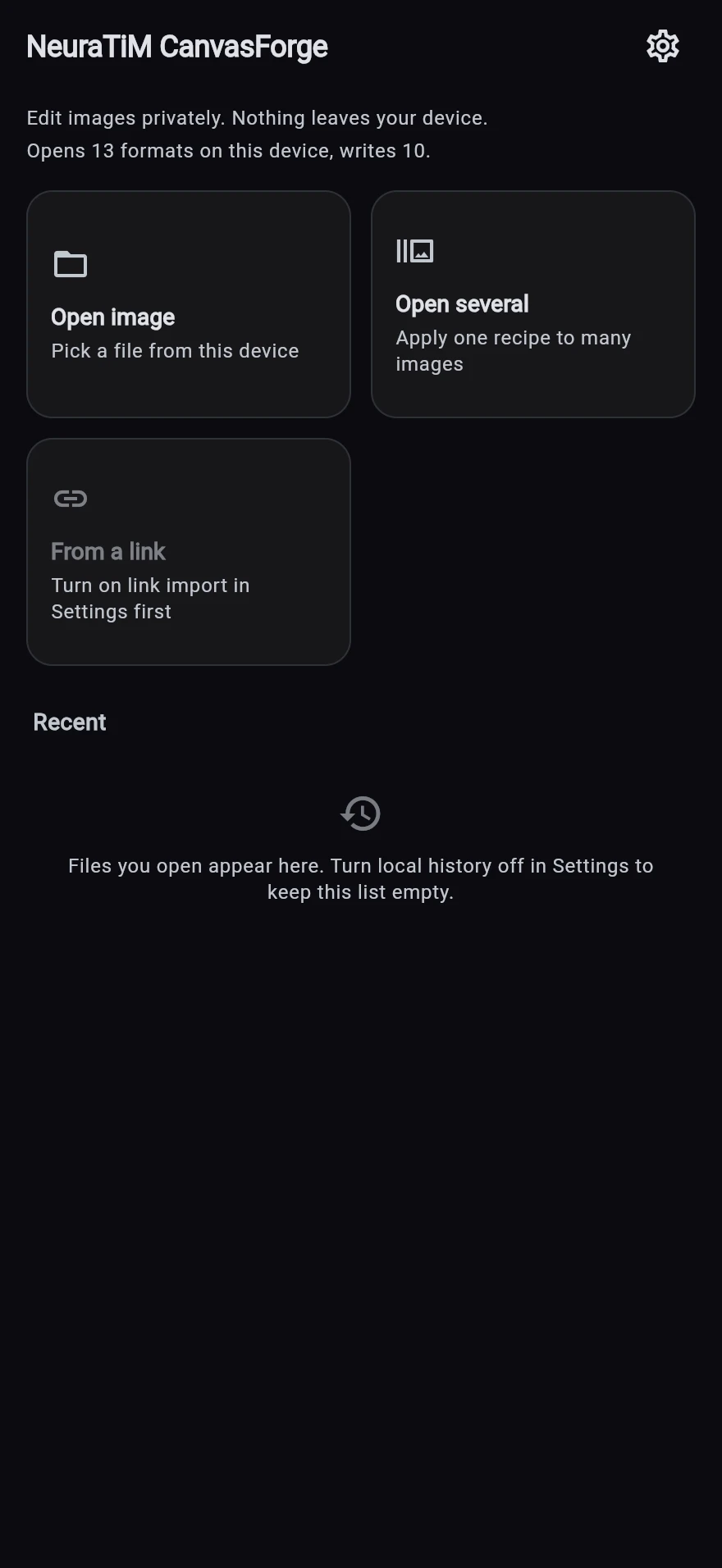
Bring a photograph in.
Open a file, pick from the photo library on a phone, or drop a folder into Batch. Fifteen formats open — SVG among them, drawn at whatever size you ask for — and HEIC and AVIF wherever the device has the codec, so the picker offers exactly what will actually work.
Edit
Change the recipe, not a second bitmap.
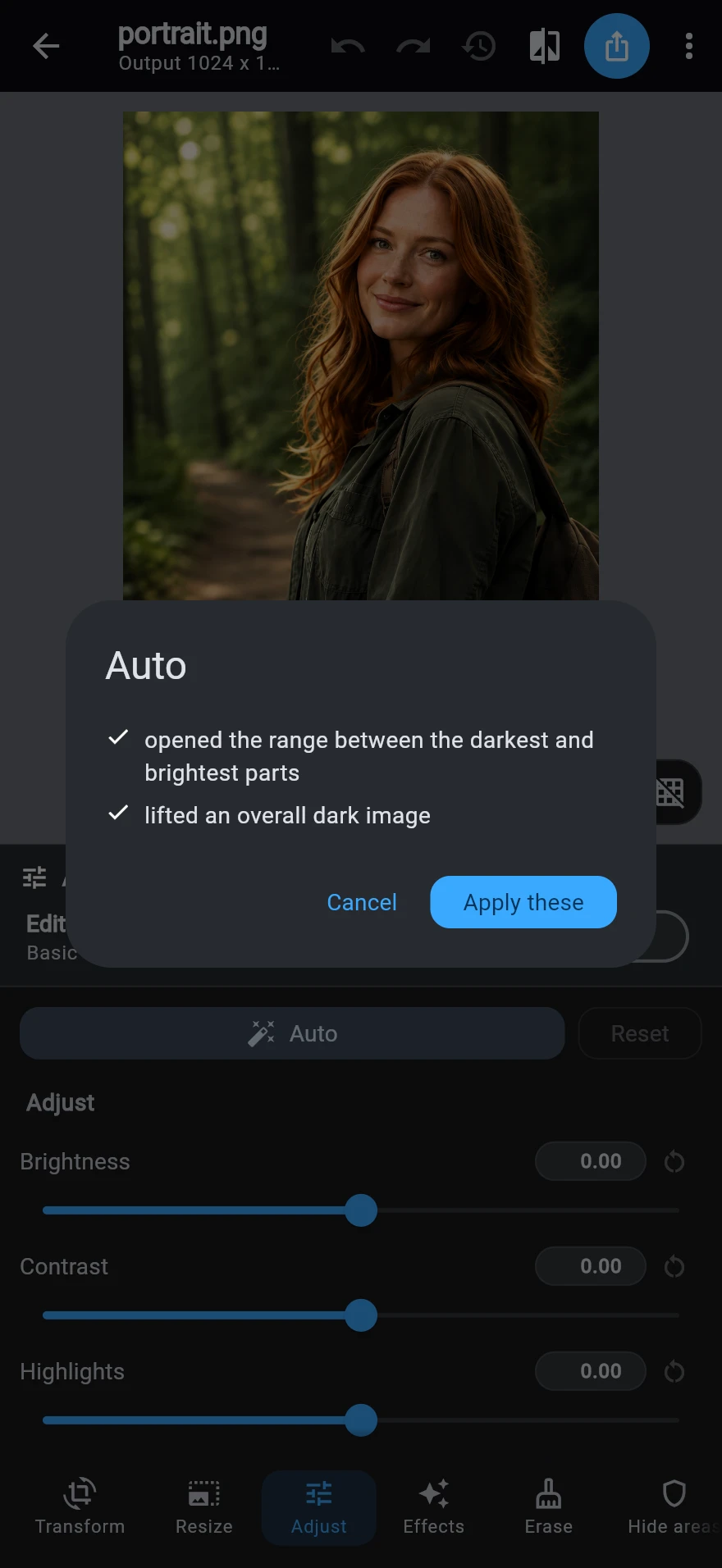
Six destinations on one rail — Transform, Resize, Adjust, Effects, Erase, Hidden areas. Resize leads with one-tap sizes and prints the result before you commit, and auto enhance says what it proposes in plain words before it touches anything. Basic stays simple; Advanced reveals the numbers when you want them.
Export
Leave with a new file.
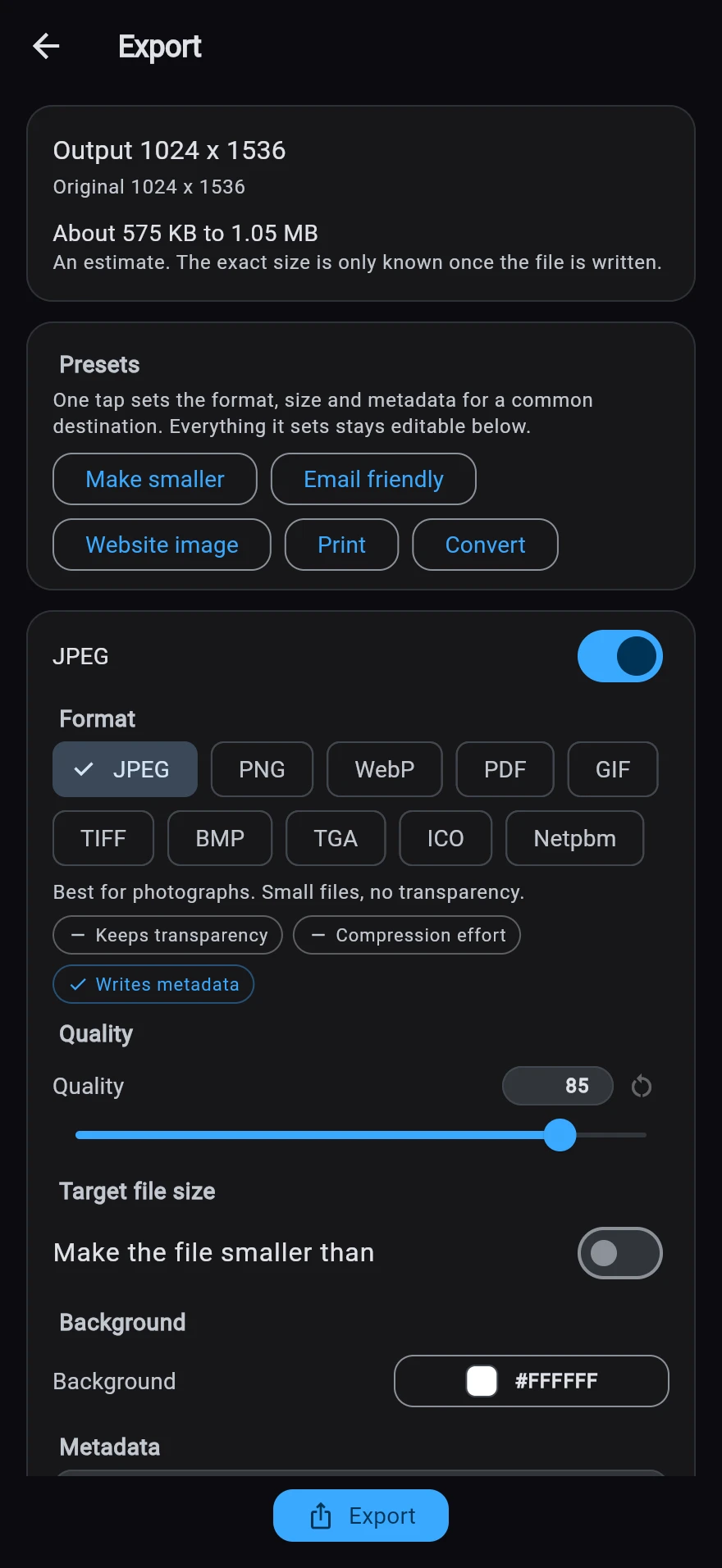
Eleven formats out, PDF included. Choose a quality or a target file size, strip or keep metadata, then export — or run Batch across a folder and download every result at once.
The Tools
Six destinations. That is the whole editor.
No layers, no text tool, no shapes — each stop on the rail is one stage of one pipeline, so the preview and the export come from the same recipe.
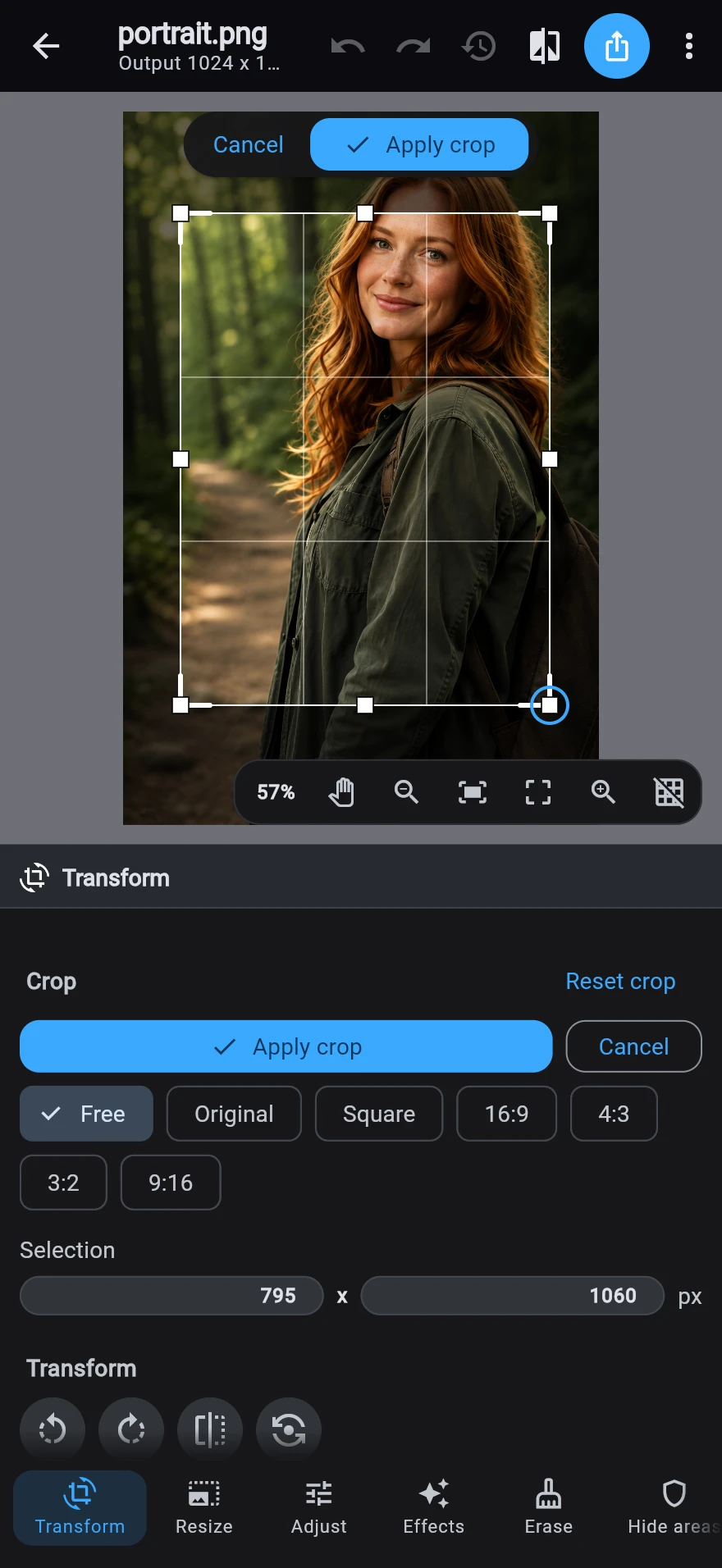
Transform
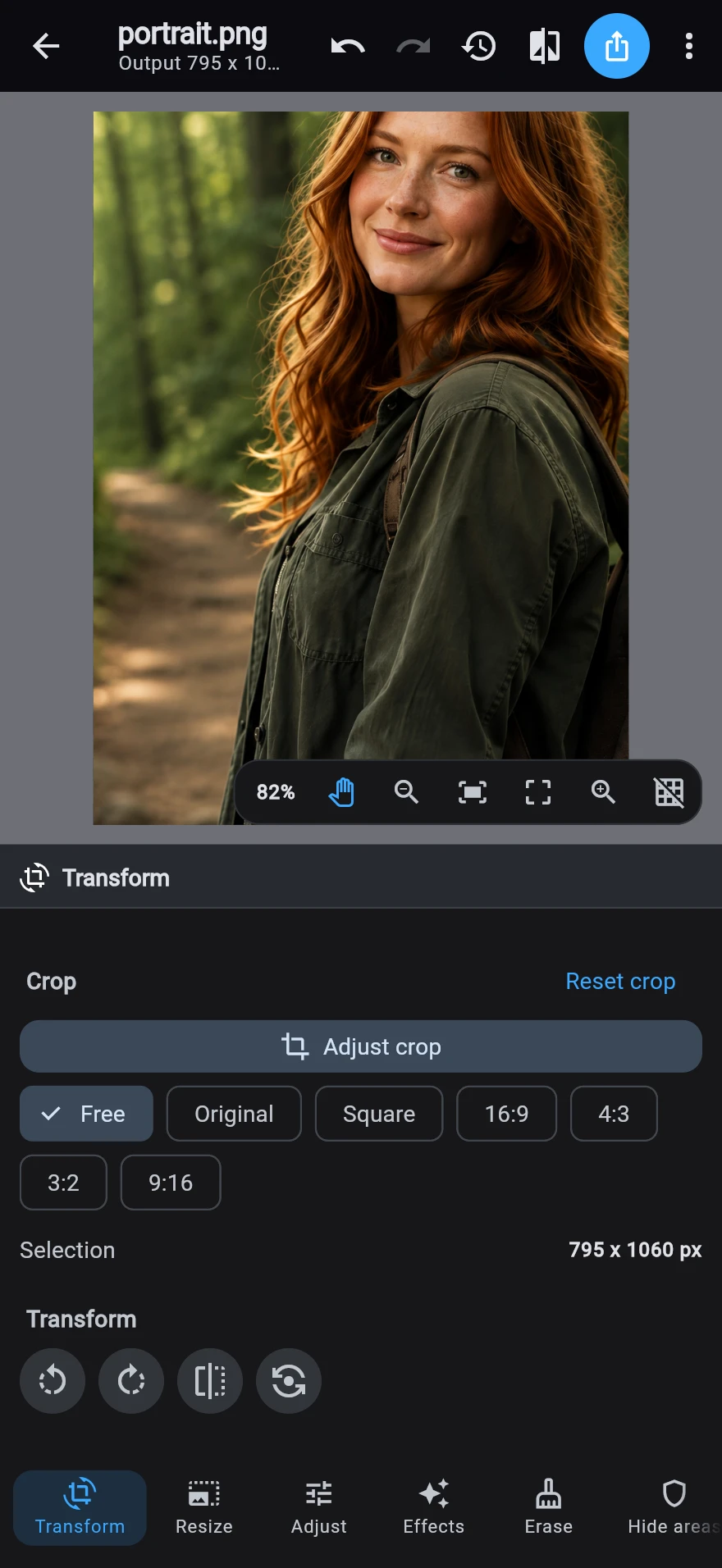
Staged crop with ratio presets, rotate and flip. Marks already on the picture move with the pixels they belong to.
Resize
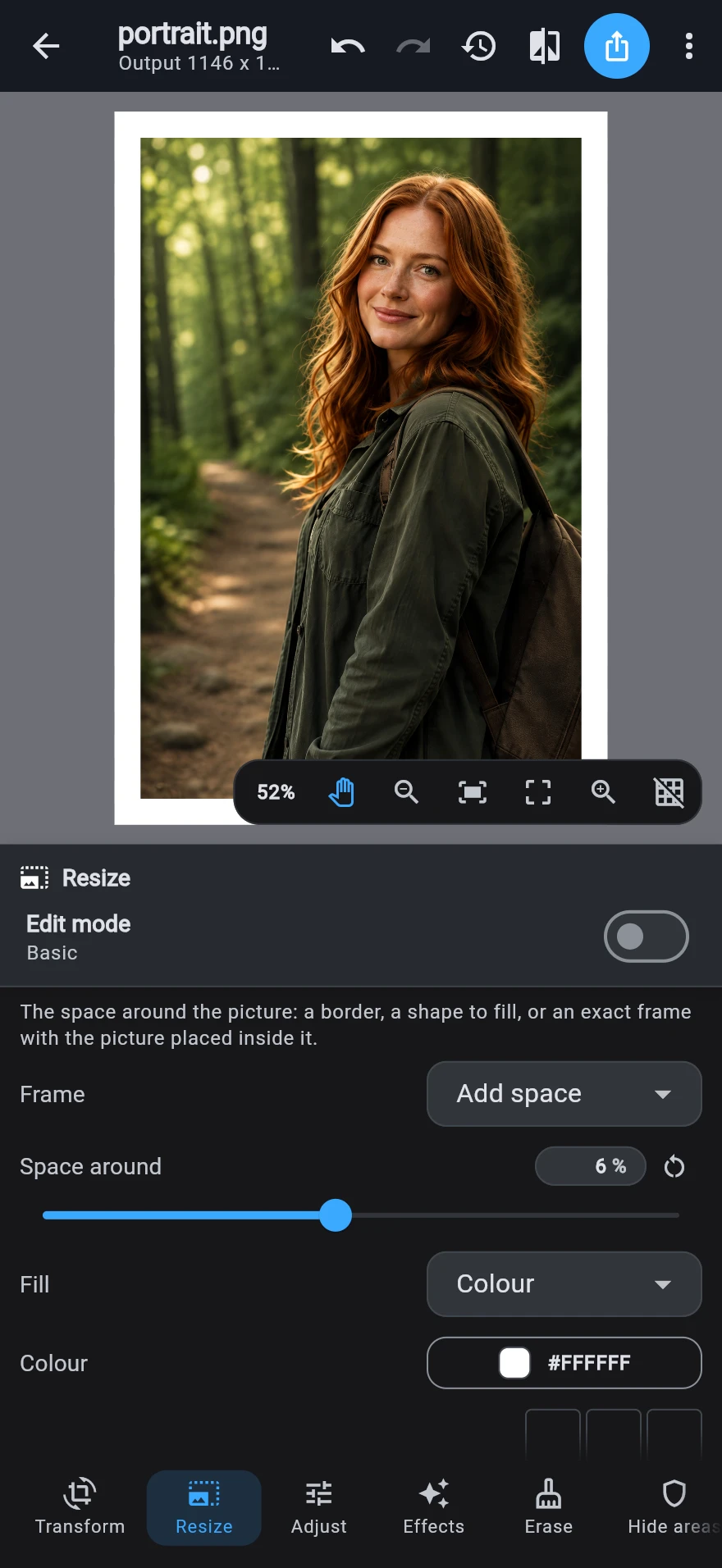
One-tap quick sizes, then eight ways to be exact — width, height, percent, long or short edge, megapixels, or centimetres at a DPI. Plus the frame around the pixels: border, fill, rounded corners, shadow and placement.
Adjust
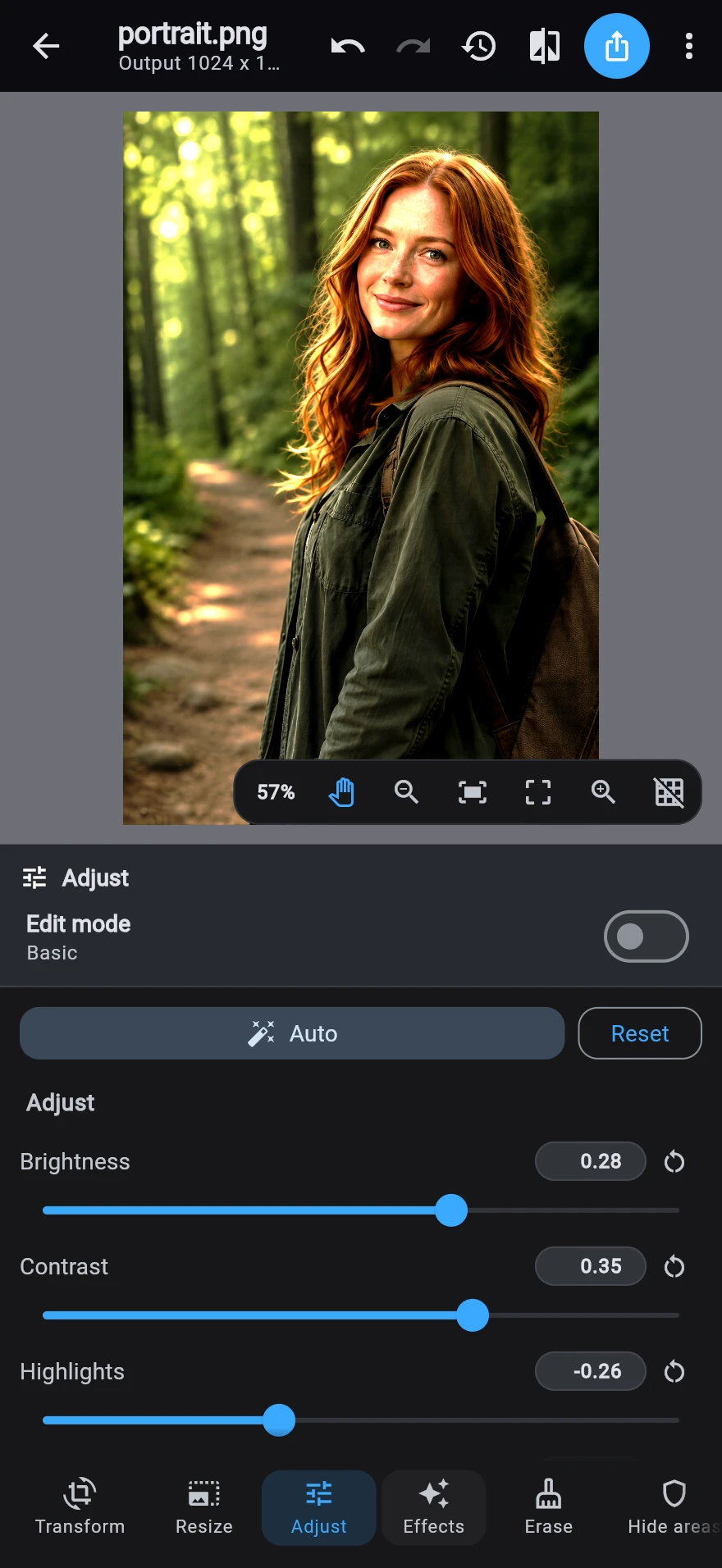
Tonal and colour controls, mixer, levels, curves, histogram and auto enhance that shows its reasoning first.
Effects
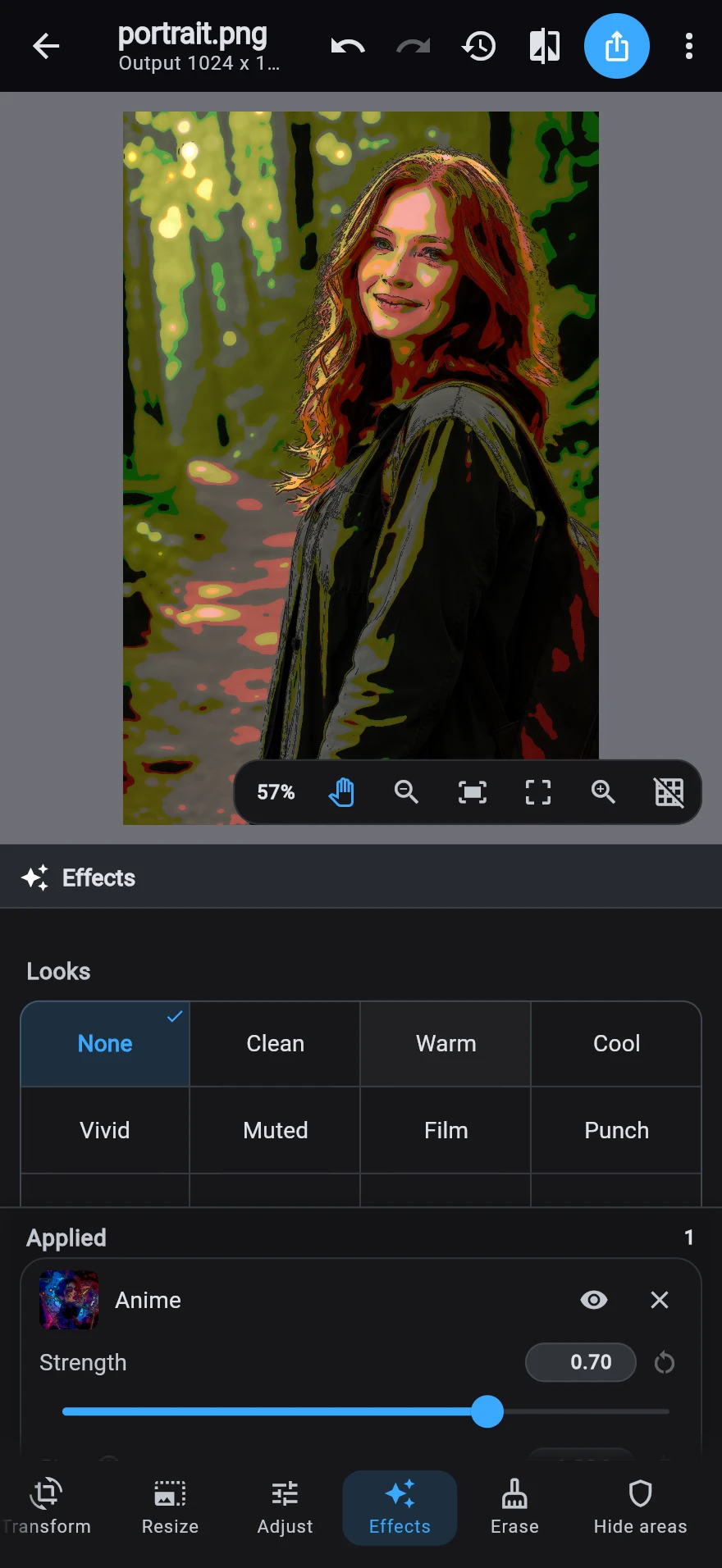
A searchable gallery of looks — blur and sharpen through anime, comic, sketch, film and more — each with strength you can dial.
Erase
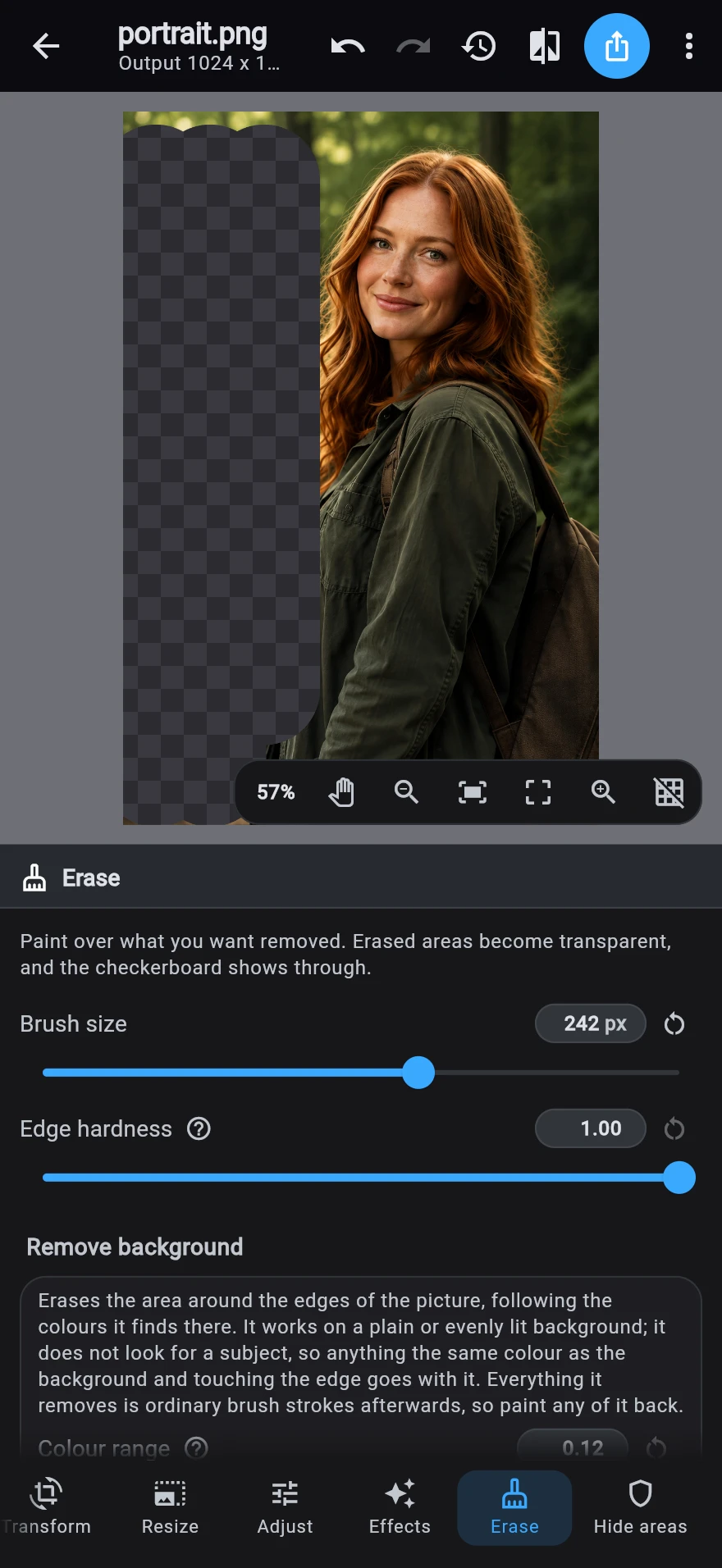
A brush that takes pixels to transparency, plus remove-background that fills from the frame edges and leaves ordinary strokes you can paint back.
Hidden areas
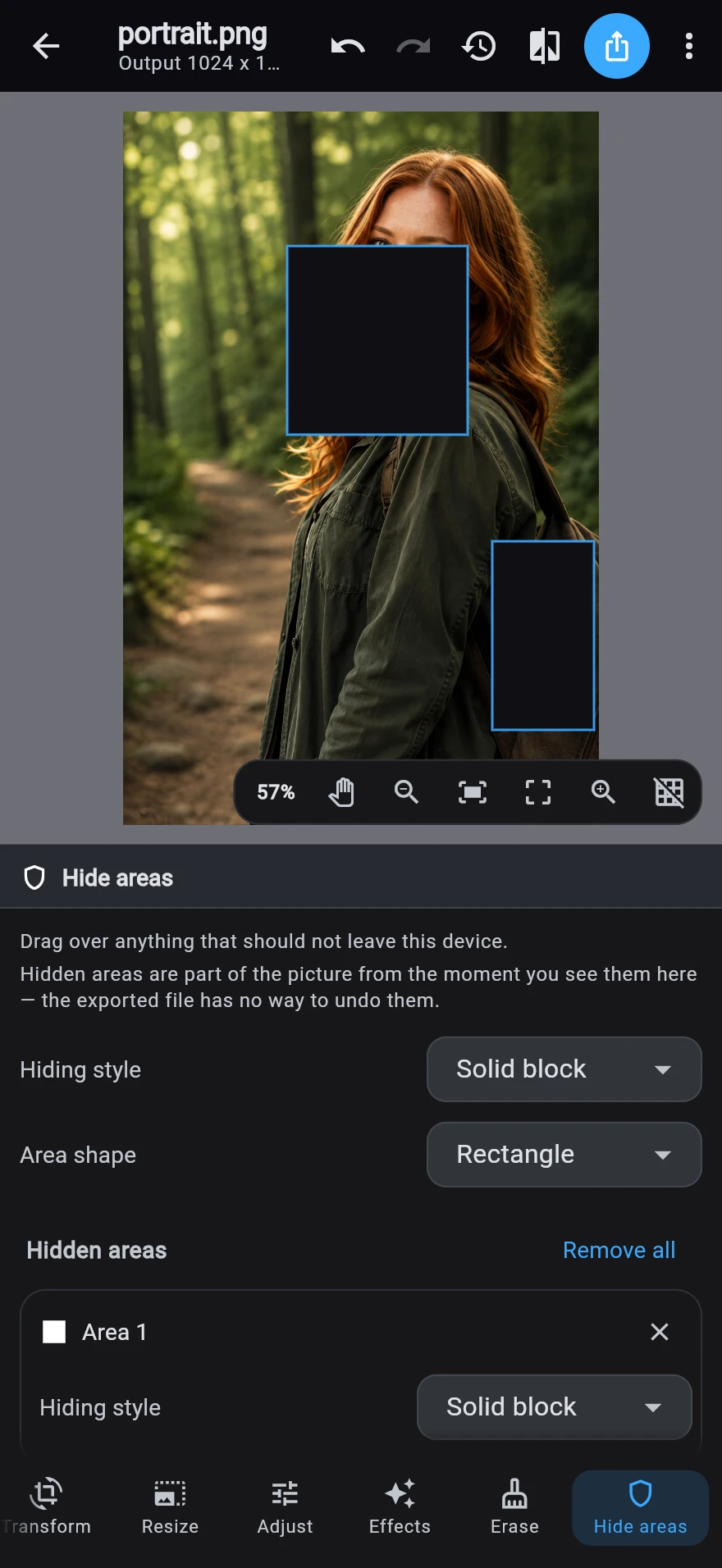
Drag a box, choose block, mosaic or blur, and burn it into the pixels at every resolution including the preview.
Resize & Export
The part you actually came for.
Make it a different size, make it a different format, or make it fit under a file size — one screen each, and no hunting. Then do the same to a folder full of pictures without opening one of them.
Resize
One tap for the size you meant.
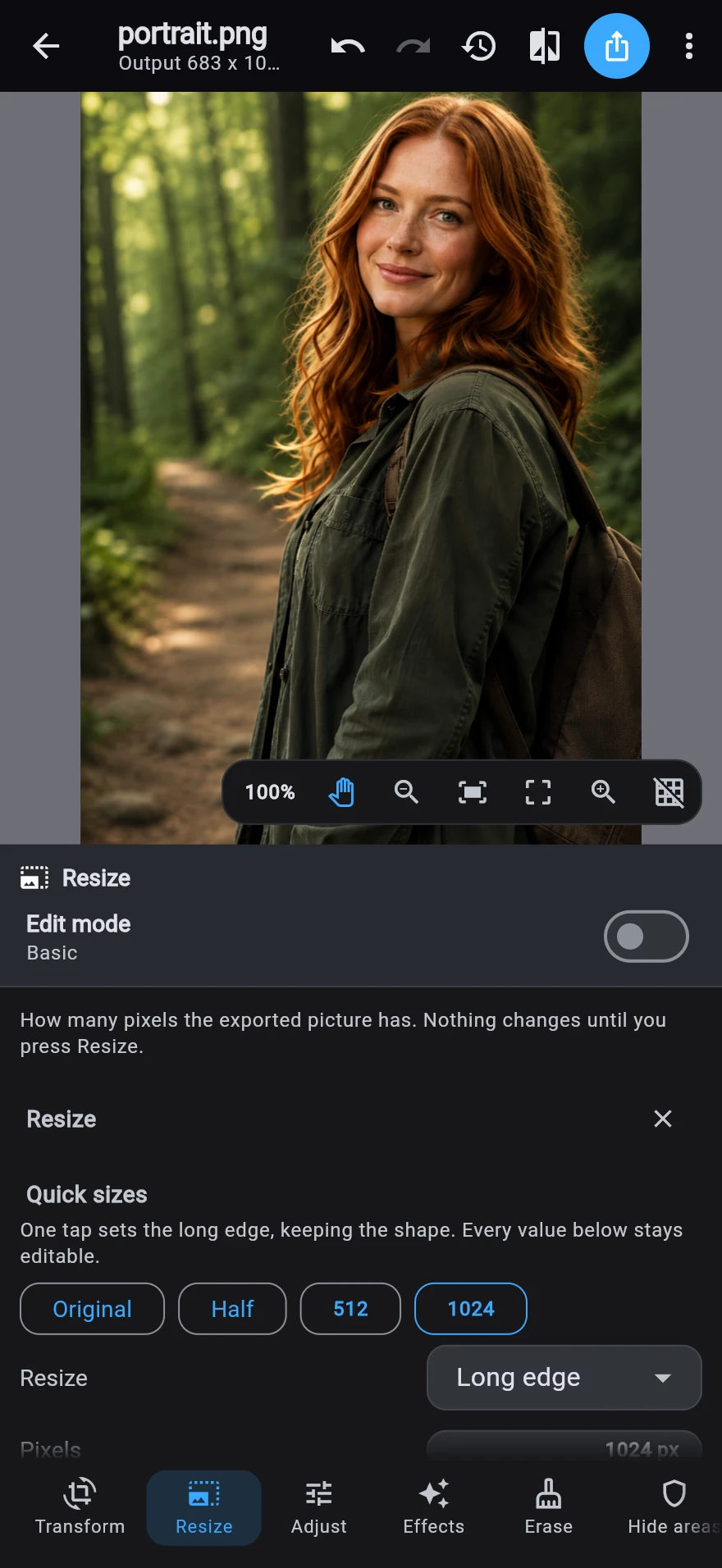
Quick sizes first: Original, Half, and the edges the picture is big enough to reach — 512, 1024, 1920, 2560, 3840. One tap fills the fields, and the exact size it will produce is printed before you press Apply. Eight ways to say what you want are still there when a number is what you have: width, height, percent, long edge, short edge, megapixels, or centimetres at a DPI.
Export Studio
A format, a quality, or a size budget.
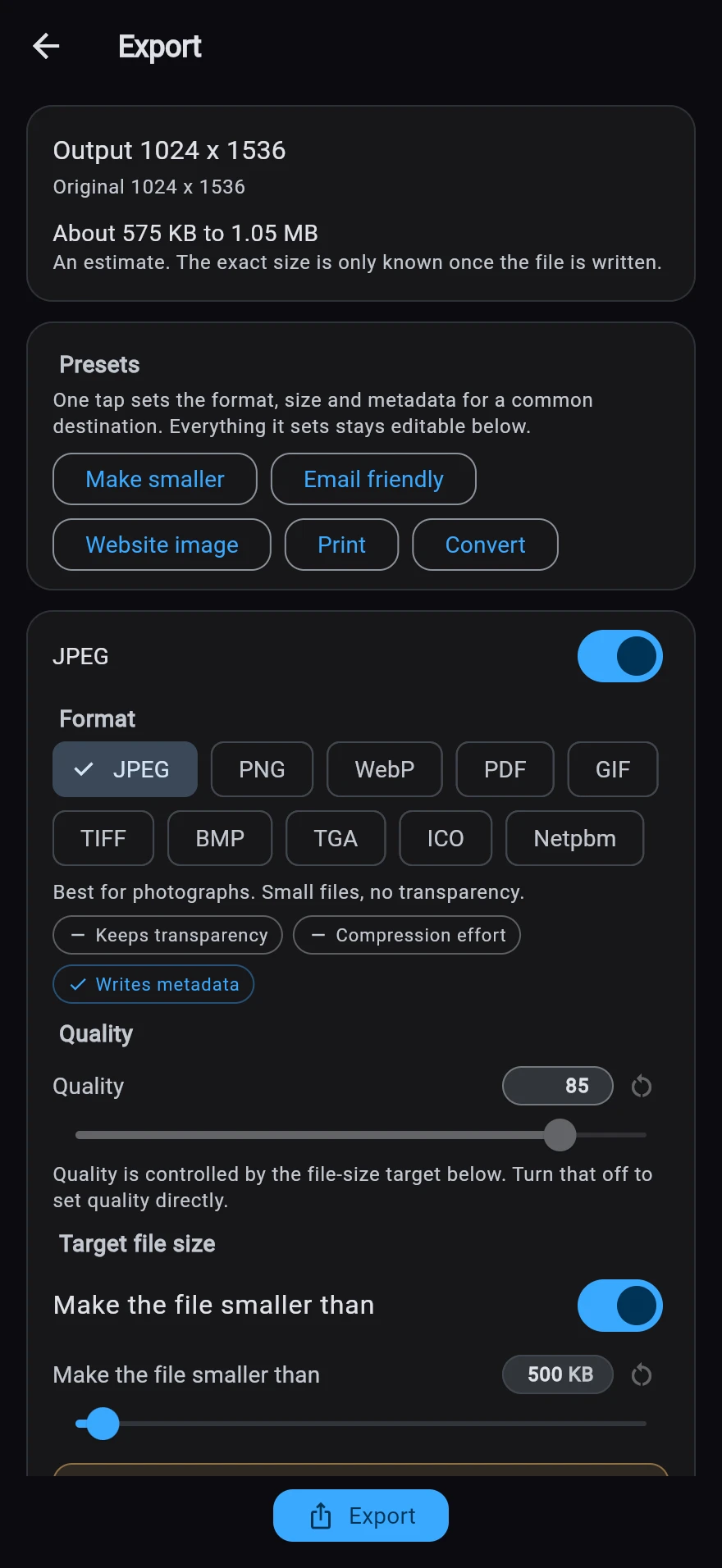
Eleven formats can be written, including a one-page PDF for anything you need to send or print, and HEIC wherever the phone's own encoder can produce one. Set a quality, or set a file size and let the solver find the quality for you — the two are mutually exclusive, so one always steps aside for the other. Metadata is stripped by default, and several variants can come out of one job.
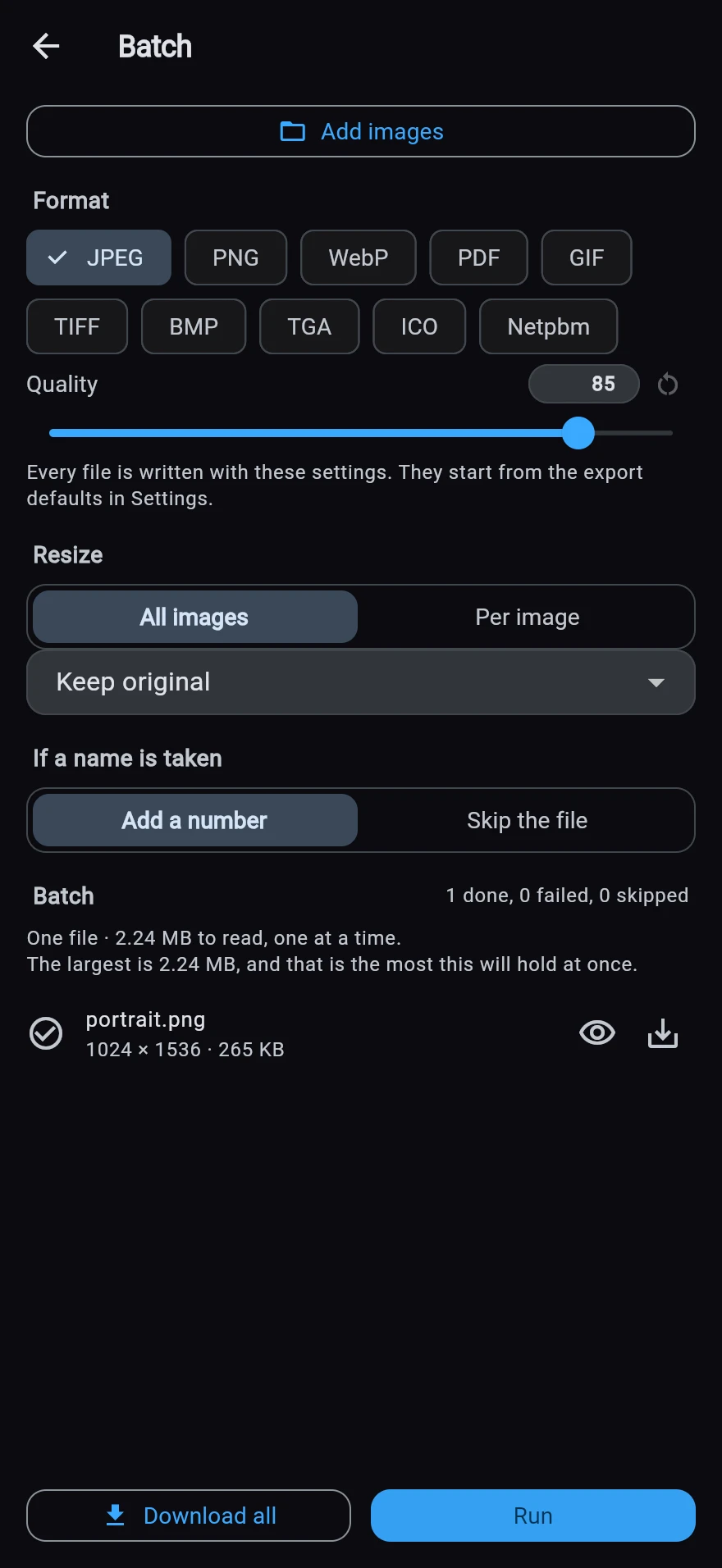
Batch
Convert many files without opening each one.
Add a folder of pictures, optionally set a shared or per-image size, run the job, preview any result, and download everything that succeeded — conflict-safe names across the whole run.
Formats
Fifteen in. Eleven out.
Reading and writing are separate questions, and this table answers them separately. Three rows carry an asterisk, and that is the interesting part: they need a codec the operating system supplies, so a phone does them and a browser tab does not.
| Format | Open | Save |
|---|---|---|
| JPEG | yes | yes |
| PNG | yes | yes |
| WebP | yes | yes |
| no | yes | |
| GIF | yes | yes |
| TIFF | yes | yes |
| BMP | yes | yes |
| TGA | yes | yes |
| ICO | yes | yes |
| Netpbm | yes | yes |
| SVG | yes | no |
| HEIC | yes — on devices with the codec | yes — on devices with the codec |
| AVIF | yes — on devices with the codec | no |
| PSD | yes | no |
| OpenEXR | yes | no |
| PVR | yes | no |
on devices with the codec
A phone does more than a browser can
HEIC and AVIF are what a modern camera actually writes, and HEIC is worth writing back — but all three need a codec the operating system supplies, which phones and Macs have and a browser tab does not. So they are offered on a phone and simply absent on the web, rather than offered everywhere and refused once you have picked the file.
The web formats, in both directions
SVG opens like anything else, except that it asks how big you want it first — a drawing has no pixels until something picks a number, so it is your number rather than a guess. And a PDF page carries the exported JPEG untouched at 300 DPI, so the quality slider and the file-size budget both work on one.
The lists are generated, not typed out
Every list in the app is generated from one capability registry, and a test runs each encoder to check the registry is telling the truth. A quality slider only exists where the encoder has one; a format is only offered where the device can read it.
Why CanvasForge
Handy, not enormous.
Resizing that gets to the point
Quick sizes for the answer you already had in mind, and eight modes for when you have a number instead. The size it will produce is printed before you commit, so nothing is a surprise.
Export with somewhere to go
Eleven formats out, including a one-page PDF and — on a phone — HEIC. Say what quality you want, or say what the file may weigh and let the solver work backwards — then hear what it had to give up, measured rather than predicted.
Private by design
Your pictures never leave the phone or browser. There is no upload for processing, no analytics, and no account — only a feedback form and an optional link import you turn on yourself.
Non-destructive recipes
An edit is a parameter in a recipe, not a new copy of the pixels. Undo is a list of whole recipes; sixty of them cost less than one preview bitmap.
Basic and Advanced
Basic is the default — large preview, plain labels. Advanced reveals the numbers. Switching never changes a value, because both edit the same recipe.
Formats that match the device
Fifteen formats open and eleven can be written, but not all of them everywhere: the picker and the format chips offer exactly what the device in your hand can do, rather than everything and an apology afterwards.
Redaction that stays gone
Hidden areas are burned into the pixels at every resolution — never an overlay a project file could restore. Export can strip metadata by default.
A deep effects library
Blur, sharpen, anime, comic, sketch, film looks, distortions and more — over a hundred effects in a searchable, tabbed gallery. Already-added kinds stay out of the picker.
Privacy
Your pictures never leave your device.
NeuraTiM CanvasForge has no server for images. There is no account, no analytics and no crash reporter — only two outbound paths you start yourself.
- No account or sign-in, ever
- No analytics, trackers or ad SDKs
- No image upload for processing
- Feedback and optional link import are the only network calls — both started by a tap
On-device only
Opening, editing and exporting all happen on your device. There is nowhere for a picture to go.
Free & Support
100% free. No catch.
Every feature, on every platform, for everyone. That is not changing.
The one real cost is Apple's $99/year Developer Program fee, required just to put an app on the App Store — regardless of price. I cover that (and hosting) myself. If NeuraTiM CanvasForge saved you the trouble of a paid editor, a small tip helps keep it running — never required, always appreciated.
Quickest Way to Tip
Other ways to say thanks:
Prefer email? Send a Tip
Get the App
Same editor, every platform.
Open it in the browser now, or install the native builds when you want them on a phone.
Web
Runs in any modern browser. Pictures stay in this origin's storage; nothing to install.
Open the Web AppAndroid
In closed testing on Google Play. Join the tester list and it installs like any other app.
iOS
Free sideloadable build for now — the App Store needs a paid developer account.